
iOS 27 poster passes: posterGeneric, featured actions and new barcodes explained
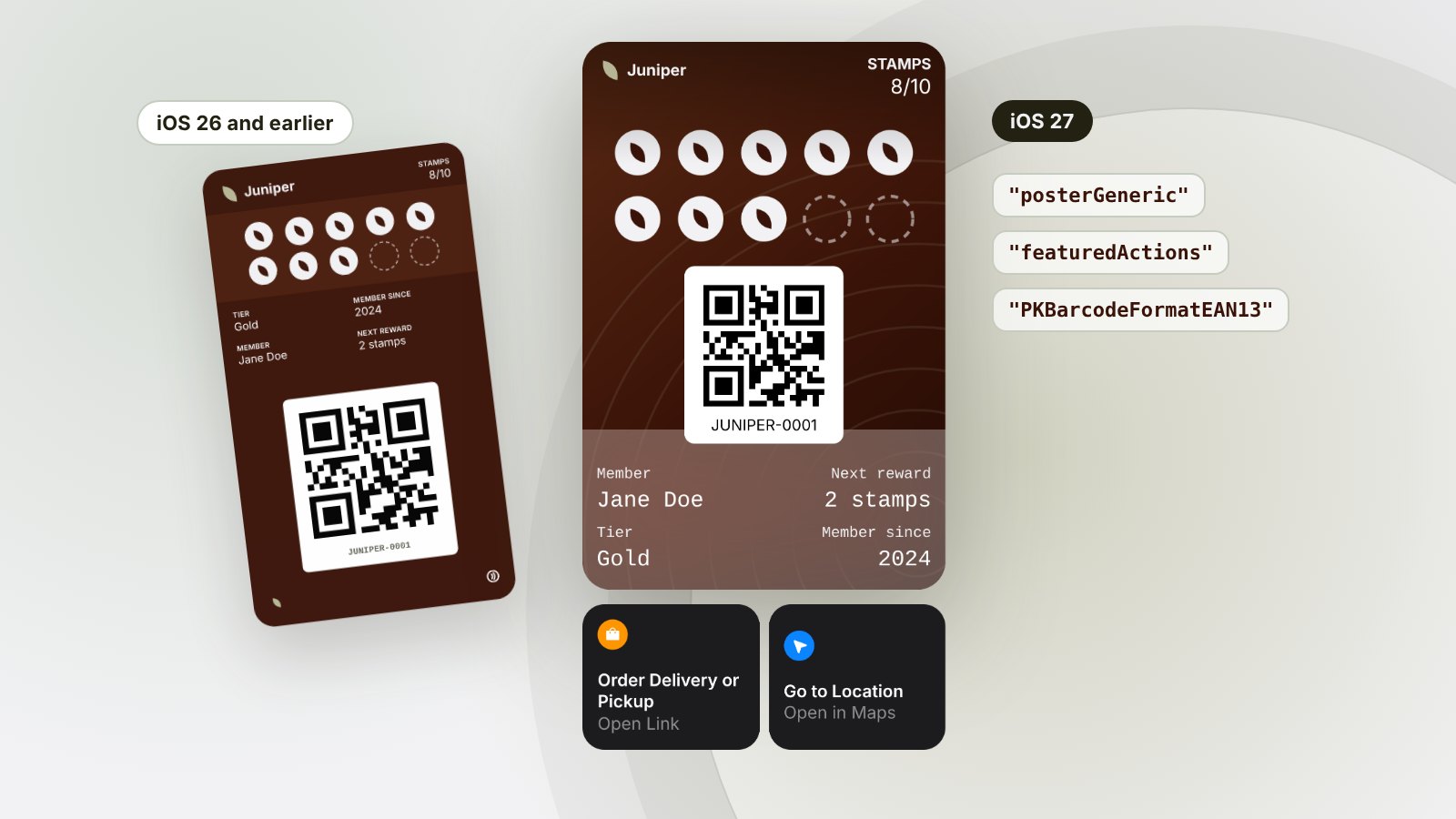
Since Passbook launched in 2012, an Apple Wallet loyalty card has looked much the same: a logo, a strip image, a few fields and a barcode. iOS 27 changes that. At WWDC26 Apple added a poster layout built for loyalty and membership cards, buttons that sit under any pass, and four new barcode formats.
All three are opt-in keys in pass.json. Get them right and customers on iOS 27 see a much richer card. Get them wrong and people on older iPhones may not be able to add your pass at all. Here’s what changed and how to ship it safely.
The Poster Generic style
The headline addition is a new pass style, posterGeneric. Instead of a strip across the middle, the artwork fills the whole pass. On top of it sit:
- a primary logo at the top left
- one header field at the top right
- the barcode on a white panel, a little below the middle
- up to four primary fields on a frosted panel at the bottom, two to a row
- one footer field
Apple pitches it at membership cards and loyalty programs, and it shows. A café can put its own photography or illustration on the card, with the customer’s stamps drawn into the artwork, rather than squeezing everything into a 375 by 144 point strip.
A tip from Apple’s session: leave the label off the first primary field and Wallet shows its value as a bold title.
Always include a fallback style
Poster Generic only exists on iOS 27. A pass that contains nothing but posterGeneric can’t be shown on iOS 26 and earlier, so Apple’s guidance is to keep a classic style dictionary beside it. A pass can now carry two styles: posterGeneric and exactly one of generic, storeCard, coupon, eventTicket or boardingPass. iOS 27 picks the poster, and everything else renders the classic one.
Apple’s own example pairs the poster with generic. At Leal we pair it with storeCard, which is what existing loyalty cards already use, so nothing changes for customers who haven’t updated.
Poster image sizes
The poster needs two new images in the package. These sizes come from Apple’s open source Pass Builder:
| File | Size | @2x | @3x |
|---|---|---|---|
artwork.png | 358 × 448pt, exact | 716 × 896px | 1074 × 1344px |
primaryLogo.png | up to 126 × 30pt | 252 × 60px | 378 × 90px |
secondaryLogo.png | up to 135 × 12pt (optional) | 270 × 24px | 405 × 36px |
Your existing logo.png and strip.png stay for the fallback style.
Two things we learned from testing real poster passes on an iPhone. First, the pass face is taller than the artwork, about 358 × 502 points, so Wallet scales the artwork up and crops roughly 6% off each side. Keep important detail away from the edges. Second, there’s no room for logoText beside the primary logo. iOS 27 shows it as a bare ”…”, so leave logoText out of poster passes.
Featured actions
featuredActions is a new top-level array that works on every pass style, not just posters. Wallet shows each action as a tile under the pass, with an icon and a call to action. One action gets a full-width tile; two sit side by side. Apple allows at most two, so order them by priority.
Each action has a unique identifier, a type and a url:
"featuredActions": [
  {
    "identifier": "offers",
    "type": "viewOffersRewards",
    "url": "https://example.com/rewards"
  },
  {
    "identifier": "booking",
    "type": "bookAppointment",
    "url": "https://example.com/book"
  }
]
There are fourteen types. The ones that suit local businesses are viewOffersRewards, membershipBenefits, order, shop, bookAppointment, addToBalance, call and place. The rest (bookStay, bookCar, bookFlight, viewSchedule, watchTrailer, listenToMusic) are for travel and events.
Two types behave differently:
calltakes atel:URL, such astel:+353123456789.place(“Go to Location”) opens Apple Maps, and it needs an Apple Maps place ID inplaceIdentifier, not a URL. Apple’s documentation doesn’t spell this out. In our tests a Maps link inurlis treated as invalid and Wallet quietly leaves the action off.
iOS 26 and earlier ignore featuredActions, so they’re safe to add to any pass today.
New field groups
Two field groups are new. additionalInfoFields appear in an Additional Info section below the pass, which is a natural home for a list of rewards (“10 stamps: Free coffee”). footerFields sit at the bottom of the poster. Wallet only shows the first footer field, so don’t rely on a second one.
Four new barcode formats
iOS 27 can display four more barcode symbologies, which matters if your point of sale scanner or membership system already uses one of them:
PKBarcodeFormatEAN13PKBarcodeFormatCode39PKBarcodeFormatCodabarPKBarcodeFormatI2of5(ITF)
The catch is that older iPhones can’t display them, and if a pass only has a new format, iOS 26 and earlier show no barcode at all. Wallet uses the first barcode in the barcodes array that the device supports, so list the new format first and a QR or Code 128 fallback after it:
"barcodes": [
  { "format": "PKBarcodeFormatEAN13", "message": "5901234123457", "messageEncoding": "iso-8859-1" },
  { "format": "PKBarcodeFormatQR", "message": "5901234123457", "messageEncoding": "iso-8859-1" }
]
It’s also worth putting the member number in a visible field, so staff can type it in if a scanner refuses the code. The poster reads its barcode from the barcodes array, so if your pass still only uses the old singular barcode key, add barcodes too.
Apple’s new tools
Apple also released two tools for building passes. Pass Designer is a Mac app that renders a pass exactly the way iOS does and saves .pkpasstemplate files. Pass Builder is an open source Swift library and command line tool that fills in templates, signs them and validates them, and it runs on Linux as well as macOS.
Pass Designer is the best way to check a design, but it only runs on a Mac. To look inside a pass from any browser, our free pkpass inspector now previews iOS 27 poster passes and featured actions, with a switch to see what iOS 26 shows instead. It checks the artwork and logo sizes, the fallback style and the new barcodes. Our pass.json validator runs the same iOS 27 checks on a pass.json on its own. Both run entirely in your browser.
A quick checklist before you ship
- Keep one classic style beside
posterGeneric. - Add
artwork.pngat exactly 358 × 448pt, with @2x and @3x, and keep detail away from the edges. - Add
primaryLogo.pngand droplogoText. - Put at most four primary fields and one footer field on the poster.
- Use the
barcodesarray, with a classic fallback after any new format. - Give each featured action a unique identifier, use
tel:for Call andplaceIdentifierfor Go to Location. - Test on an iPhone running iOS 27 and on one that isn’t.
Or skip the PassKit work
If you run a café, salon or shop, you shouldn’t need to know any of this. Leal builds iOS 27 poster loyalty cards for you, with each customer’s stamps drawn onto your artwork, Go to Location and booking buttons, and a store card fallback for older iPhones, plus Google Wallet. Signing, certificates and updates are handled for you.
Start free and launch your first card. The free plan is free forever, and you don’t need a credit card.