
How to Open a .pkpass File on Windows, Mac, iPhone and Android
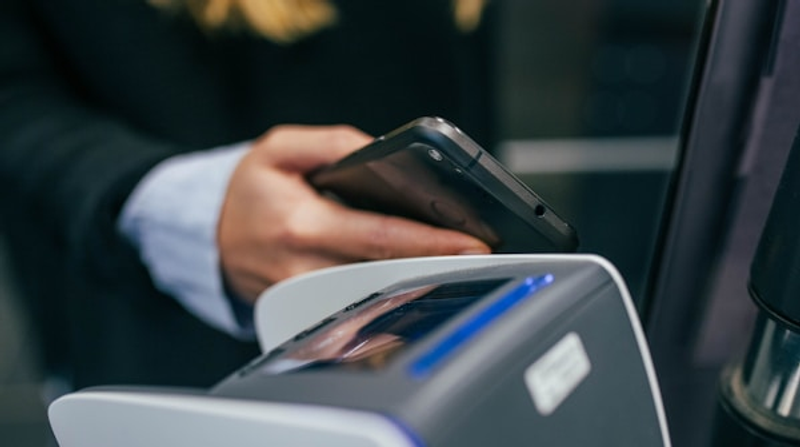
Someone sent you a .pkpass file. On an iPhone it would have opened by itself, but you’re on a laptop and double-clicking does nothing.
The short version: .pkpass is Apple Wallet’s pass format, and only Apple devices open it natively. Android gained support in 2024. Windows never had it, and still doesn’t. What you do next depends entirely on which device is in front of you.
iPhone, iPad and Apple Watch
Tap the file. That’s the whole process.
Whether it arrives in Mail, Messages, Safari or a file manager, tapping a .pkpass opens the Apple Wallet preview with an Add button in the top right. Once added, the pass lives in Wallet and appears on your lock screen when it’s relevant: near the venue, or close to departure time.
If tapping does nothing, the pass is usually malformed rather than unsupported. A broken signature or a mismatched manifest hash causes iOS to refuse the pass without much explanation. You can confirm that by inspecting the package and checking whether the signature validates.
Mac
Double-click the file and macOS opens Pass Viewer, a small built-in app most people never encounter otherwise. It renders the pass and offers to add it to Apple Wallet, which syncs it to your iPhone and Apple Watch through iCloud.
There’s no Wallet app on macOS itself, so Pass Viewer is a staging post rather than a destination, and the pass ends up on your phone.
Android
Since April 2024, Google Wallet can import .pkpass files directly. Tap the file in Gmail, your browser or a file manager, and Add to Google Wallet appears in the share sheet.
This works for most passes, but not all. Google Wallet converts the pass into its own format, and passes relying on Apple-specific behaviour (certain barcode types, unusual field layouts, or automatic updates through a webServiceURL) may be rejected or lose functionality.
When that happens, a dedicated third-party app handles the format more faithfully. PassWallet and Pass2U both read .pkpass natively and support pass updates.
Windows
This is where people get stuck, because there is no native option. Windows has no application that renders an Apple Wallet pass, and the old Microsoft Wallet was discontinued years ago. You have three workarounds.
1. Use a browser-based viewer
The most practical route if you want to actually see the pass. Drop the file into our free pkpass viewer and it renders a preview, shows the fields, decodes the barcode and lists everything in the package. It runs entirely in your browser, and the file is never uploaded to a server, which matters when the pass is a boarding pass with your name and booking reference on it.
This works identically on Windows, Linux and ChromeOS.
2. Rename it to .zip
A .pkpass file is a ZIP archive. Rename ticket.pkpass to ticket.zip, extract it, and you’ll get the raw contents: pass.json with all the pass data, the images, a manifest.json and a signature file.
Open pass.json in any text editor and you can read the barcode message, the field values and the metadata. You won’t get a rendered pass, and you can’t add it to anything, but if you just need the confirmation code or the barcode payload, it’s there in plain text.
You may need to enable file extensions first: in File Explorer, View → Show → File name extensions.
3. Forward it to a phone
If the pass needs to be scanned at a gate or a counter, you need it on a device that can display the barcode. Email or message the file to a phone and open it there. A screenshot of a rendered barcode usually scans fine at most venues, though some airlines specifically require the live pass.
When the pass won’t open anywhere
If a .pkpass file is rejected on every device, the file itself is broken. The three usual causes, in the order worth checking:
- The download is truncated or re-encoded. Some email clients and messaging apps mangle attachments. Check the file size looks plausible, since a real pass is typically 10–100 KB. If it opens as a ZIP but is missing
pass.json, it never downloaded properly. - The signature is invalid. Passes are signed with a Pass Type ID certificate and Apple’s WWDR intermediate certificate. If either has expired since the pass was issued, Wallet refuses it. This is common with old passes from small vendors.
- The manifest hashes don’t match. If anything in the package was modified after signing, even metadata, the integrity check fails.
Our pkpass inspector reports all three: it validates every manifest hash against the actual file contents, parses the PKCS#7 signature, and checks the signer against pinned Apple WWDR certificates.
Quick reference
| Device | Native support | What to do |
|---|---|---|
| iPhone / iPad | Yes | Tap the file, then Add |
| Apple Watch | Yes | Syncs from iPhone Wallet |
| Mac | Yes | Double-click, opens Pass Viewer |
| Android | Yes, since 2024 | Share sheet → Add to Google Wallet |
| Windows | No | Browser viewer, or rename to .zip |
| Linux / ChromeOS | No | Browser viewer, or rename to .zip |
If you’re the one sending passes
Everything above is the receiving end. If you’re issuing passes (loyalty cards, tickets, memberships) the friction described here is worth designing around.
Two things help most. Send a link rather than a file attachment, so the recipient’s device can serve the right format instead of forcing a .pkpass onto a machine that can’t read it. And issue both an Apple Wallet pass and a Google Wallet pass, so Android users never depend on conversion.
Leal does both by default: one enrolment link, and the customer’s device gets the right pass for its platform. Certificates, signing and updates are handled for you, and the free plan covers unlimited customers.
Want to understand the format properly first? What’s inside a .pkpass file breaks down every component.